Quick answer
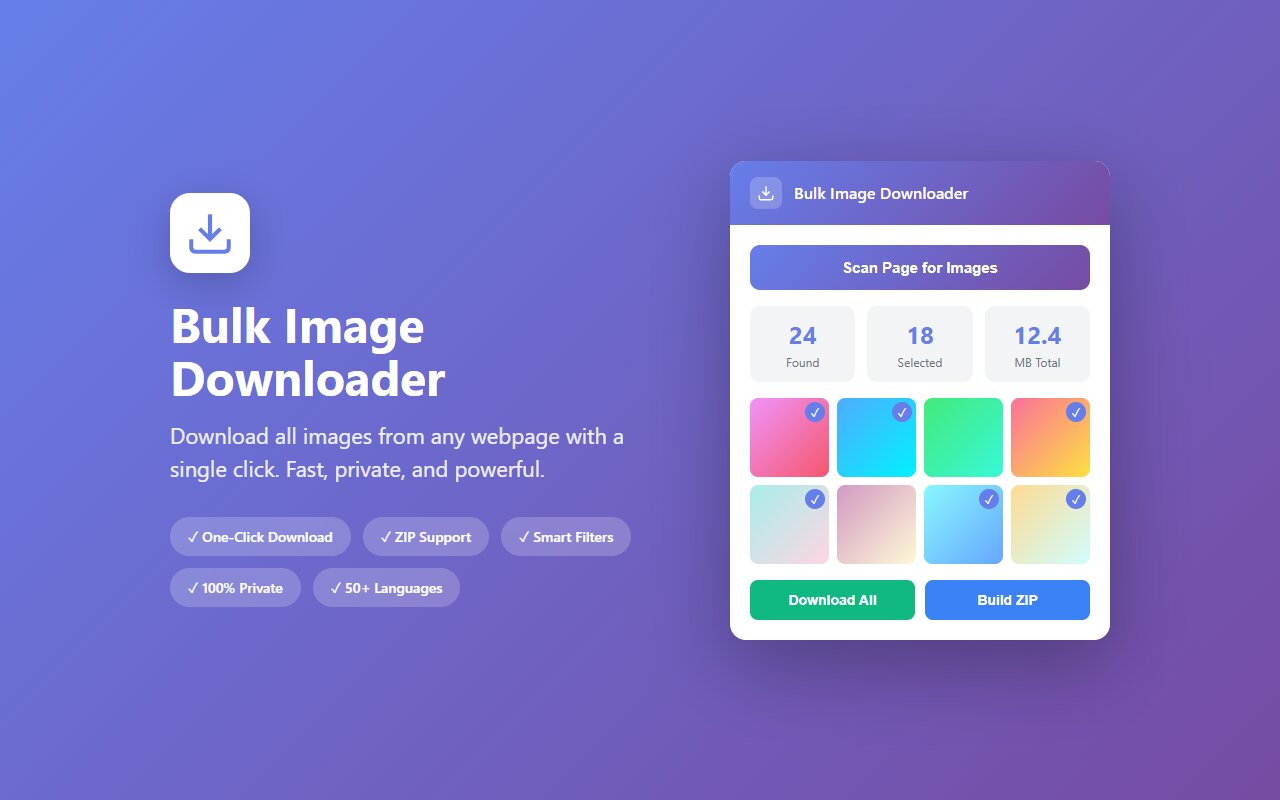
Open the website in your browser, click the Bulk Image Downloader extension icon, select the images you want (or "All"), and download them as a ZIP. No special tools, no scripts needed.
Every website builder says your portfolio or catalog lives forever on their servers. Then they shut down, or you switch platforms, or the site goes down for maintenance for 3 months. If a website has images worth keeping, downloading them locally is faster than re-shooting or redesigning.
When to bulk download a website
Real reasons people need this:
- Portfolio backup. Your photography or design portfolio lives on a hosted platform (Squarespace, Wix, Cargo). Save all images before you switch builders or the service goes down.
- Competitor research. Download a competitor's product catalog to analyze photo style, angles, and presentation.
- Inspiration library. Scrape a design portfolio or gallery website for style reference without manually right-clicking 100 times.
- Blog archiving. Download all images from a blog you want to archive before the platform shuts down.
- Real estate listings. Save property photos from Zillow or Airbnb before they expire.
Basic workflow: download all images from one page
- Open the website or page in your browser.
- Scroll through the entire page to load all images (many sites lazy-load images as you scroll).
- Click the Bulk Image Downloader extension icon in your toolbar.
- The extension lists every image on that page. Review the list.
- Click "All" to select all, or hand-pick specific images, then "Download as ZIP".
The entire flow takes 30 seconds for a typical product page or portfolio. Large image galleries (500+ images) may take a minute to load and download.
Lazy-loaded images and infinite scroll
Many modern websites load images only when you scroll to them. To download all images:
- Scroll to the bottom of the page first. This forces lazy-loaded images to render.
- For infinite scroll sites (Instagram, Pinterest, Twitter), scroll until you see "no more content". The extension can only see images that have rendered in your browser.
- Check the extension's preview. Count images in the preview list and compare to what you expect. If you are missing images, scroll more.
This is the single biggest gotcha: if you do not scroll to load lazy content, you will miss images.
Filtering by image size or type
The extension has filter options:
- Minimum size. Skip tiny images (icons, spacers, logos) by setting a minimum width or height. Default is usually 100px.
- Exclude patterns. Filter out images matching certain names (e.g., exclude "logo" or "ad-banner" to skip branding).
- Format. Download only PNG, JPG, or WebP; skip others.
Use these to clean up the download list before hitting "Download all". Manually removing 50 icon files from a 200-image ZIP is tedious.
Legal and ethical boundaries
Downloading images from a website occupies a legal gray zone. Here is the practical framing:
- Your own website: Always fine. You own the content.
- Public content for personal reference: Generally acceptable (design inspiration, research, reference).
- Commercial republishing: Downloading a competitor's product photos and using them on your own site is copyright infringement and likely trademark infringement. Don't do this.
- Machine learning training: Scraping at scale for ML models is explicitly forbidden by most websites' terms.
Use common sense: archive for personal reference, not republishing or commercial reuse.
At-a-glance comparison
| Tool | Handles lazy-load | Batch download | Selective filtering | Works on all sites |
|---|---|---|---|---|
| Bulk Image Downloader | Yes (if scrolled) | Yes | Yes | Yes |
| wget/curl + loop | No | Yes | Yes (via scripting) | Yes |
| right-click save | No | No | No | Yes |
| Puppeteer/Playwright script | Yes | Yes | Yes | Yes (if scripted) |
| Selenium script | Yes | Yes | Yes | Yes (if scripted) |